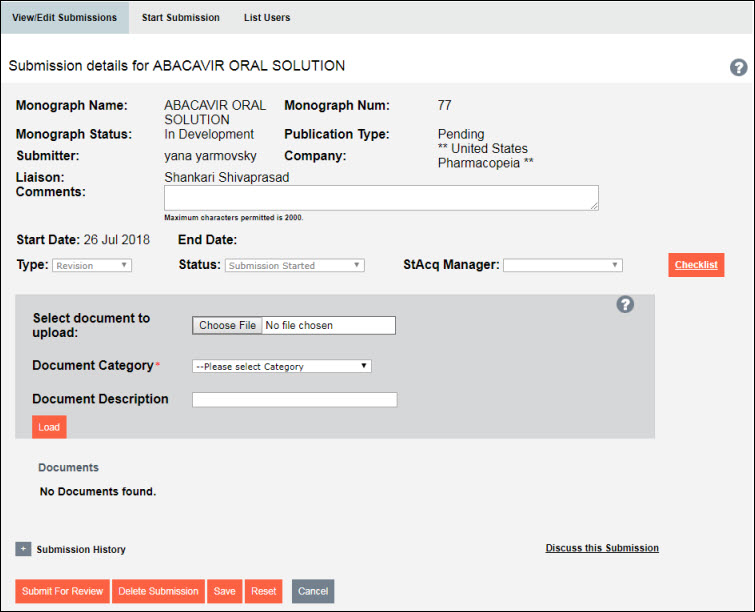
After you start a monograph submission, you are taken to an Edit Submission screen in which you can "build" the submission package. (This editing page can also be accessed via the View/Edit Submission tab; see Viewing the Submission Details).
You can edit the details on this page under the following conditions:
â the submission is in a status of "Submission Started"
â the submission was initiated by you or someone in your company
NOTE |
When making any changes to the submission, remember to save your changes using the Save button at the bottom of the window. |
If these conditions met, you can perform the following functions on this page:
â Comment on a submission
â Upload and delete documents
â Download documents to a Zip file
â Delete the submission
â Submit the submission package to USP for review
â Participate in the discussion forum concerning this monograph submission
To comment on a submission, enter your comments in the Liaison Comments text box near the top of the screen. The field allows for up to 2000 characters. Comments can be edited at any time.
To delete the monograph submission, click the Delete Submission button. You will be asked to confirm your deletion. You will also receive a follow-up email confirming your deletion.
NOTE |
Deletions are permanent (not archived). If a submission is deleted. any documentation associated with it will not be retrievable. |
To submit the submission package to USP for review, click on the Submit for Review button.
NOTE |
Once you submit the package for review, the status changes to "Submitted for Review," and you will no longer be able to edit the submission. |